How to Upload and Publish a Level in Geometry Dash (2026 Guide)
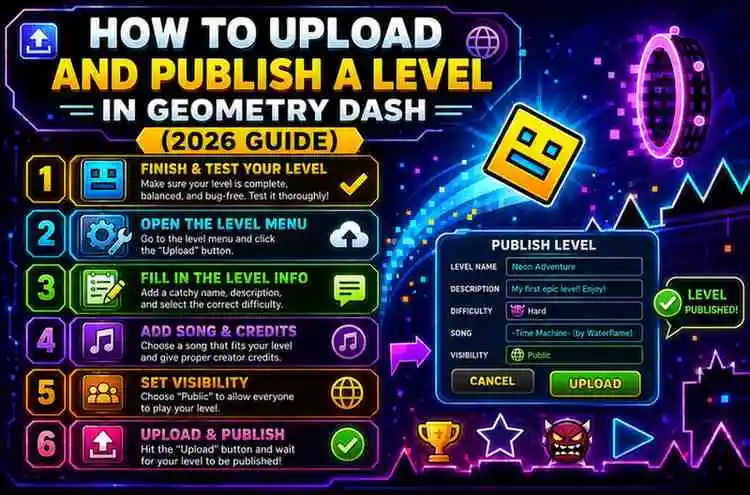
Creating your own level is one of the most exciting parts of Geometry Dash. Once you’ve finished building your masterpiece, the next step is uploading and publishing it so other players can enjoy it. Whether you’re sharing your first level or hoping to earn a featured rating, this guide explains the complete publishing process in Geometry Dash 2.2 and beyond.
Requirements Before Publishing
Before you can upload a level, make sure you have:
- A registered Geometry Dash account.
- A stable internet connection.
- A completed level that has been verified by you.
- A unique level name and optional description.
Note: You cannot upload an unfinished or unverified level.
Step 1: Open the Level Editor
- Launch Geometry Dash.
- Tap Create from the main menu.
- Select your custom level.
- Make any final edits and save your progress.
Step 2: Verify Your Level
Geometry Dash requires creators to complete their own level before publishing.
To verify:
- Press the Play button.
- Complete the entire level from start to finish without using cheats.
- Once completed, the level becomes verified.
Verification prevents impossible levels from being uploaded.
Step 3: Open the Upload Menu
After verification:
- Return to your level.
- Tap the Upload button.
- The upload screen will appear.
Step 4: Enter Level Information
Before publishing, fill in the following details:
- Level Name
- Description
- Song Selection
- Difficulty (optional/community rated)
- Coins (if applicable)
Choose a clear title and write a short description so players know what to expect.
Step 5: Upload Your Level
After reviewing everything:
- Tap Upload.
- Wait a few seconds while the game uploads your level.
- Your level will now appear on the Geometry Dash servers.
Congratulations! Other players can now search for and play your creation.
How to Get More Plays on Your Level
Publishing is only the first step. To attract more players:
- Create unique gameplay.
- Use clean decorations.
- Sync gameplay with the music.
- Balance the difficulty.
- Share your level ID with friends.
- Post your level in the Geometry Dash community.
- Continue updating and improving older levels.
High-quality levels are more likely to receive likes, downloads, and possibly a Featured or Epic rating.
Common Upload Problems
Level Isn’t Verified
Complete the level yourself before attempting to upload.
Upload Failed
Check your internet connection and try again later.
Can’t Log In
Verify that you’re using the correct Geometry Dash account credentials.
Song Issues
Some custom songs may not be available if they have been removed or restricted.
Tips for Better Levels
- Avoid blind jumps.
- Add checkpoints when designing Platformer levels.
- Test your level multiple times.
- Keep object count optimized for smoother gameplay.
- Use colors and effects consistently.
- Ask other players for feedback before promoting your level.
Final Thoughts
Uploading a level in Geometry Dash is simple once you’ve completed and verified your creation. The real challenge is designing a level that’s fun, fair, and memorable enough for other players to enjoy. Take your time polishing the gameplay, decorations, and sync before publishing.
With consistent practice and creative ideas, your levels can gain downloads, likes, and even recognition from the Geometry Dash community.
Frequently Asked Questions (FAQs)
1. Why can’t I upload my Geometry Dash level?
The most common reason is that the level hasn’t been verified. You must complete it yourself before uploading.
2. Do I need a Geometry Dash account to publish levels?
Yes. Uploading levels requires a registered Geometry Dash account.
3. Can I edit my level after publishing?
Yes. You can update your level and upload a newer version if needed.
4. Can other players rate my level?
Players can like, download, and comment on your level. Official difficulty ratings are assigned through the game’s rating system.
5. How do I make my level more popular?
Create enjoyable gameplay, attractive decoration, good music sync, and share your level ID with the community.
6. Can I upload impossible levels?
No. Every uploaded level must be completed by its creator before it can be published.
7. Do custom songs work in uploaded levels?
Yes, provided the song is available and supported within Geometry Dash.
8. Can I delete an uploaded level?
Yes. You can manage or remove your uploaded levels through your account and creator menu if needed.